
Create Your Portal Account
Aberdovey Rider Portal | Last updated: 7 October 2026
Create an account to sign in to the portal and start your rider profile. Creating an account does not register you for a ride. Ride registration and payment are separate steps after signing in.
Your route: Login page → Create account → complete your details → Create Account → Go to Sign In.
The images below are illustrated screen examples based on the current portal form, rather than live screenshots. They contain no real account details. Follow the labels and password checks on your own screen.
1. Start at the login page
- Open the portal login page.
- Below the Sign in button, choose Create account.
- If you are using the embedded registration login, use the link beginning If you have not ridden before then please create an account. It opens the account form in a new tab.
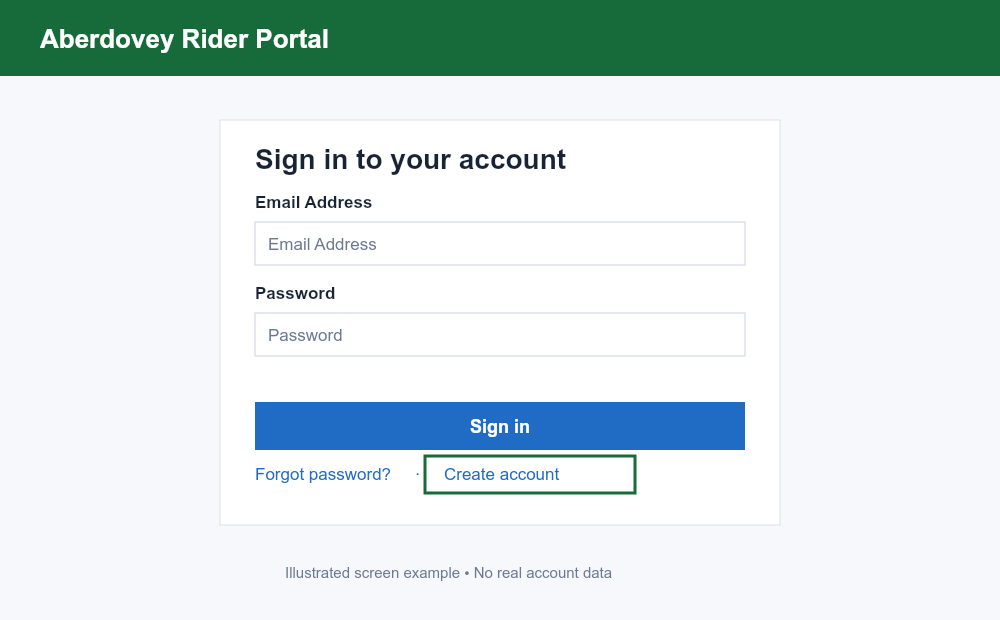
If you already have an account, sign in to it. Use Forgot password? if needed instead of creating a duplicate account.
2. Complete Create your account
Enter the following details:
| Field | What to enter |
|---|---|
| First Name | Your first name. |
| Last Name | Your surname. |
| Email Address | An email address you can access. Use this when signing in. |
| Password | A new password that meets the rules below. |
| Confirm Password | Enter the same password again. |
| Postcode | Your postcode. |
| City | Your city or town; this field is optional. |
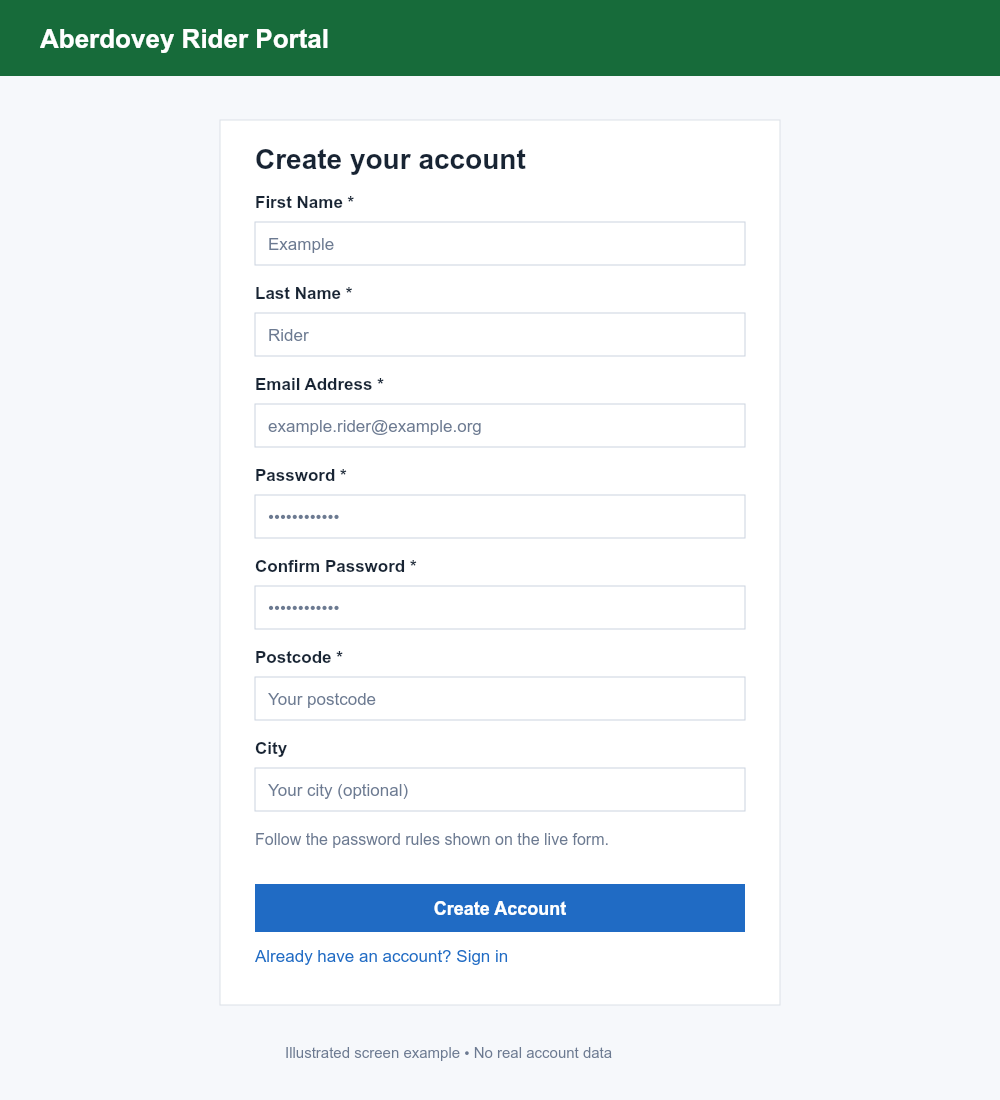
Your password must:
- Have 8–20 characters, including at least one uppercase letter, one lowercase letter and one symbol.
- Avoid three or more consecutive or repeated letters or numbers.
- Avoid common or qwerty-style passwords and parts of your email address.
The form checks these rules as you type. The eye buttons let you check the password entries. Do not use the masked example in the image as your password.
Check your email address and both password entries, then select Create Account.
3. Confirm creation and sign in
A successful submission displays Registration Successful! and You are now registered on the site. The same screen reminds you that this is separate from registering for a ride.
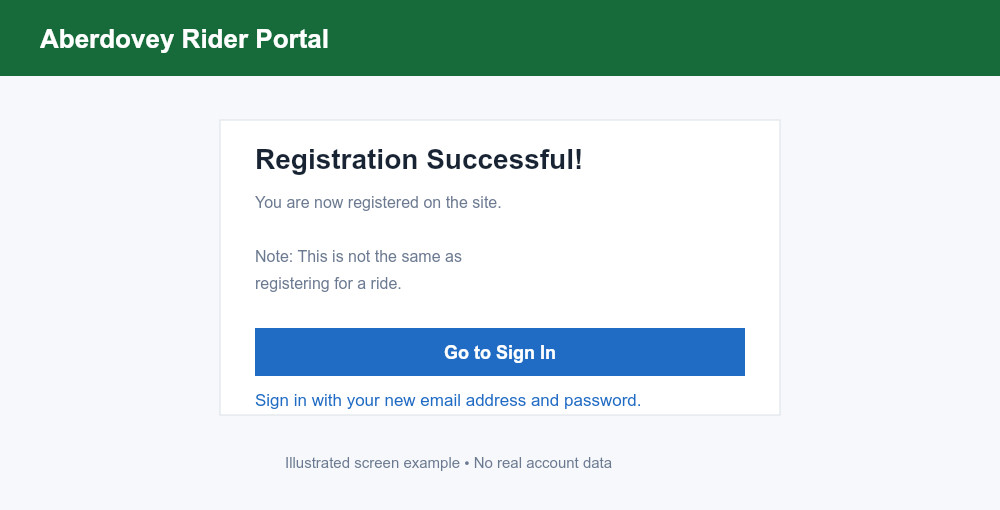
- Select Go to Sign In.
- Enter the email address and password you used when creating the account.
- Select Sign in to open the homepage.
4. Verify your email and continue your profile
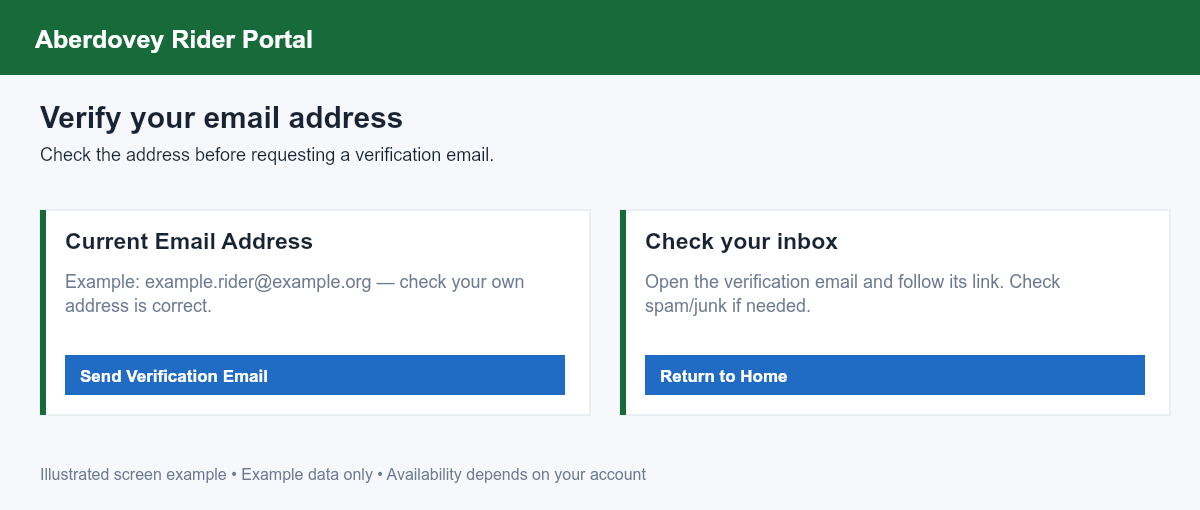
If the homepage displays an email verification notice, select Verify Email Now, check Current Email Address, and choose Send Verification Email. Open the verification email and follow its link. Check your spam or junk folder if it does not arrive; use the verification page to request another email if offered.
After signing in, use My Details → Personal Information to review your personal details. When ride registration is open, follow Register for Ride on the homepage to register for the ride and provide the additional rider details requested there.
For the next steps, see Register for a Ride. If you have already registered for a ride and still need to pay, see Paying for Your Ride After Registering.
If something goes wrong
| What you see | What to do |
|---|---|
| Email address or username already in use | Return to login and use Forgot password? for the existing account. |
| Passwords do not match | Enter the same password in both password fields. |
| A password rule is not satisfied | Follow the checks shown below the Password field, then try again. |
| Registration Failed | Read the message, choose Try Again, and correct the details. |
| You cannot sign in after creating the account | Check the email address and password. Use Forgot password? if necessary; contact the organisers if the problem continues. |
Do not send your password to the organisers or anyone else.