
Sign In and Use Your Portal Homepage
Aberdovey Rider Portal | Last updated: 7 October 2026
Use this guide to sign in, understand your homepage and deal with the actions you need to complete. Your homepage changes with your role, registration, payment status and the current ride settings. You will not see every card described here at the same time.
The images are illustrated screen examples based on the current portal, not live screenshots. They contain no real account information. Use the labels, year and amounts on your own screen.
1. Sign in to the portal
- Open the login page.
- Enter your Email Address and Password.
- Select Sign in.
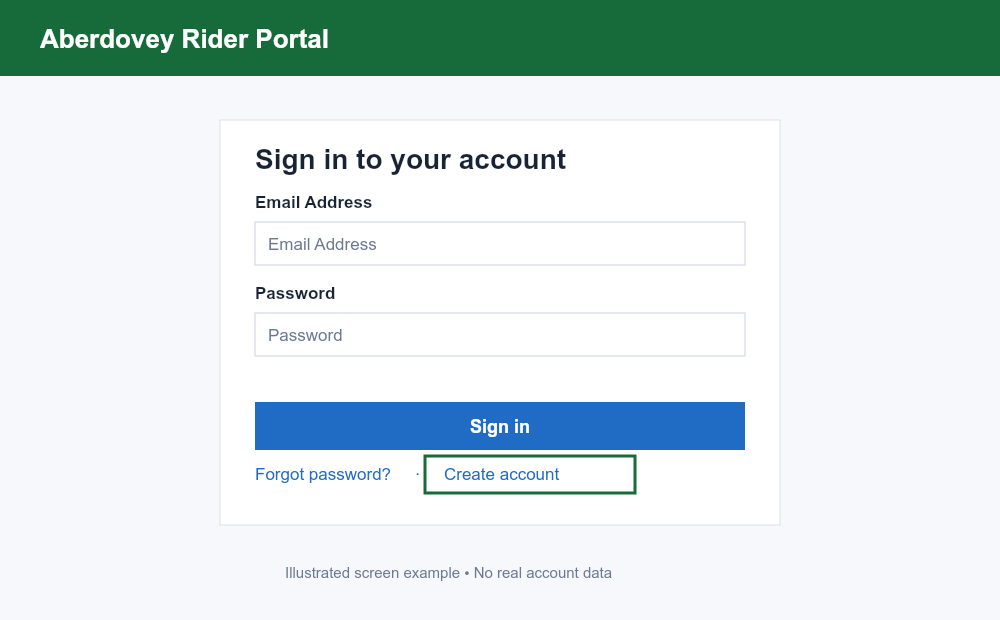
If you do not have an account, follow Create Your Portal Account. If you have forgotten your password, choose Forgot password?, enter your account email and follow the reset instructions. Check spam or junk if the email does not arrive. Avoid creating a second account: your registration and payments belong to your original account.
Only accounts with User role or above can access the portal. If your account is blocked or you cannot sign in after resetting your password, contact the organisers. An expired session can send you back to login; sign in again before continuing.
2. Check the homepage — especially what you need to do next
Make “What you need to do next” your first check whenever you return to the portal. It lists outstanding actions for your account. Complete the cards shown, return to Home and check whether anything remains. A card disappearing after processing usually means that action is no longer needed; do not submit a second registration or duplicate payment.
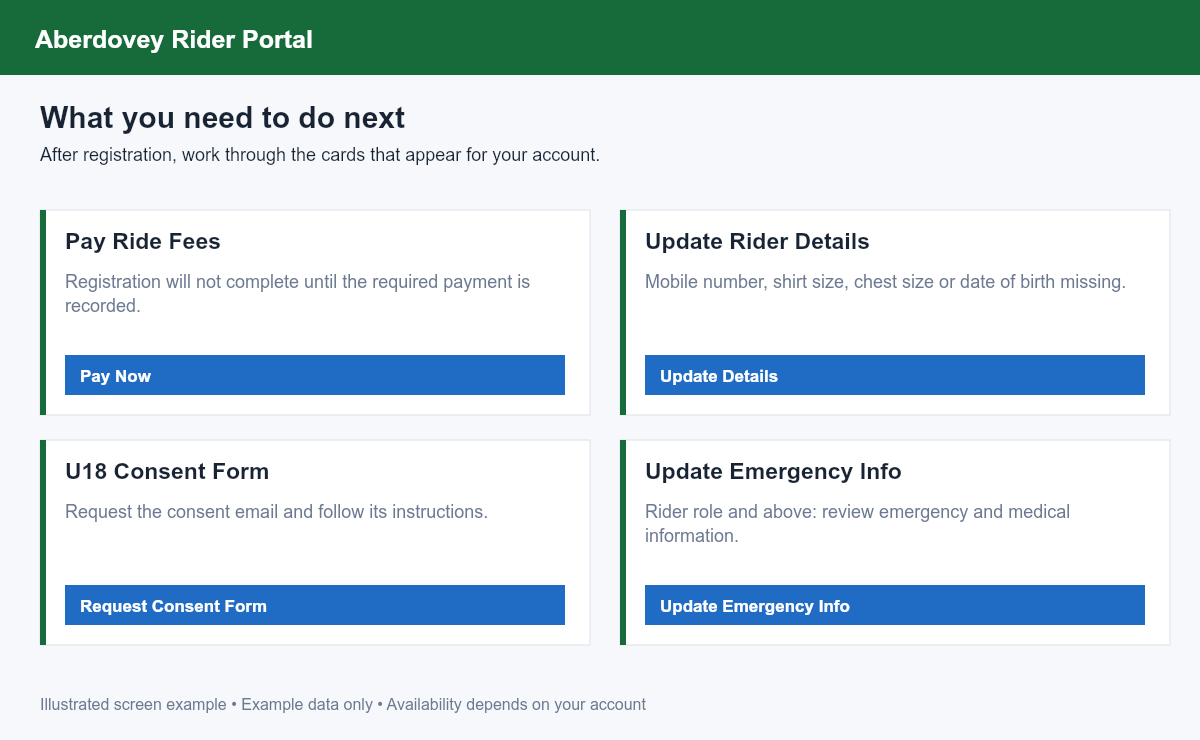
| Card | What you need to do |
|---|---|
| Pay Ride Fees | Your registration needs its initial payment. Choose Pay Now and follow Paying for Your Ride After Registering. |
| Outstanding Fees / Outstanding Deposit | Check the displayed balance and payment description. This can remain after a Challenge Ride deposit. Follow the payment instructions; check recorded payments before paying again. |
| Update Rider Details | The card identifies missing mobile, shirt size, chest size or date of birth. Choose Update Details, complete the missing fields in My Ride and save. |
| U18 Consent Form | When consent is required and not recorded as returned, request the consent form email and follow its instructions with your parent/guardian. A queued email is not confirmation that completed consent has been received. |
| Update Emergency Info | Available to Rider role and above. Check emergency contacts and medical/dietary information, then save. It can appear when information is missing or needs updating since a previous ride. |
A plain User account does not see the Rider-only emergency card. The Unread Notifications and Under 18 Consent Emails administration cards are not ordinary User actions; the Unread Notifications homepage card is Superuser-only. You can still use the notification bell for your own messages.
Email verification notice
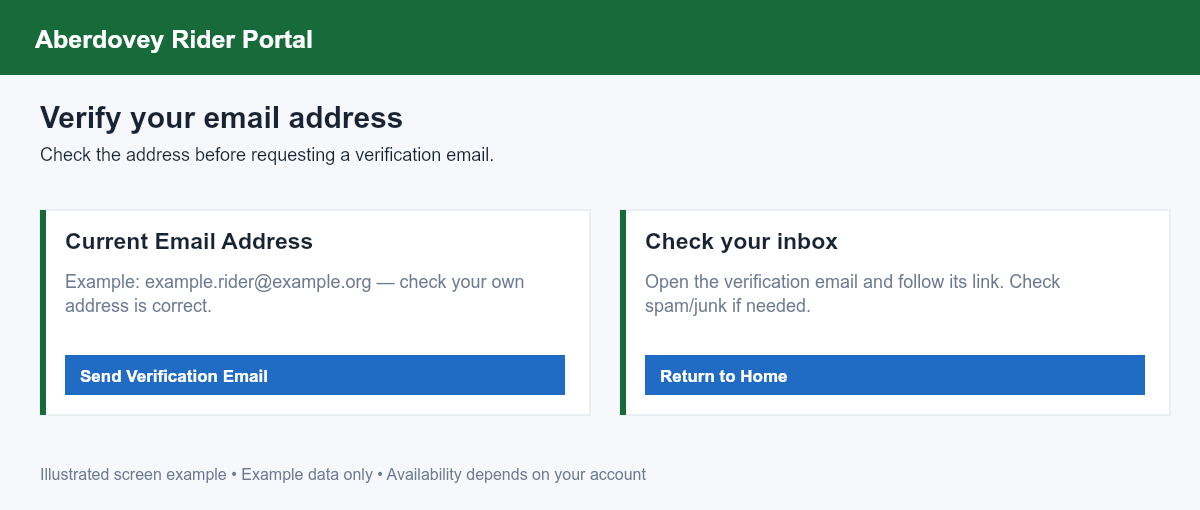
If a verification notice appears above the sections, choose Verify Email Now, check Current Email Address, select Send Verification Email, and follow the link in the email. Check spam/junk. Resolve any required verification before continuing with registration.
3. What do you want to do?
Before you register, the main action is Register for [year] Ride → Register Now, when registration is open and you have no current registration. It is hidden once a current registration exists. Follow Register for a Ride.
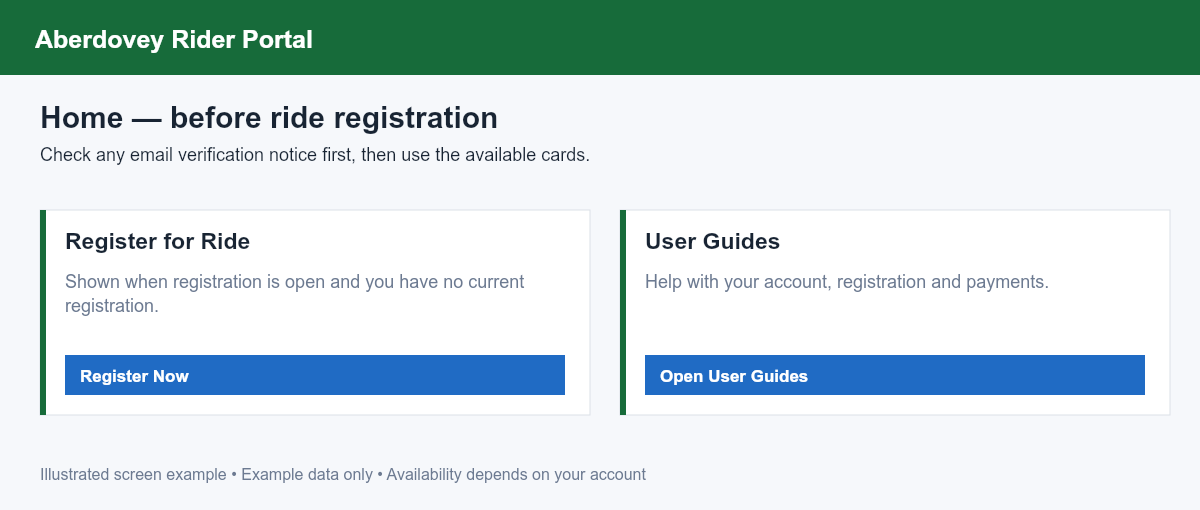
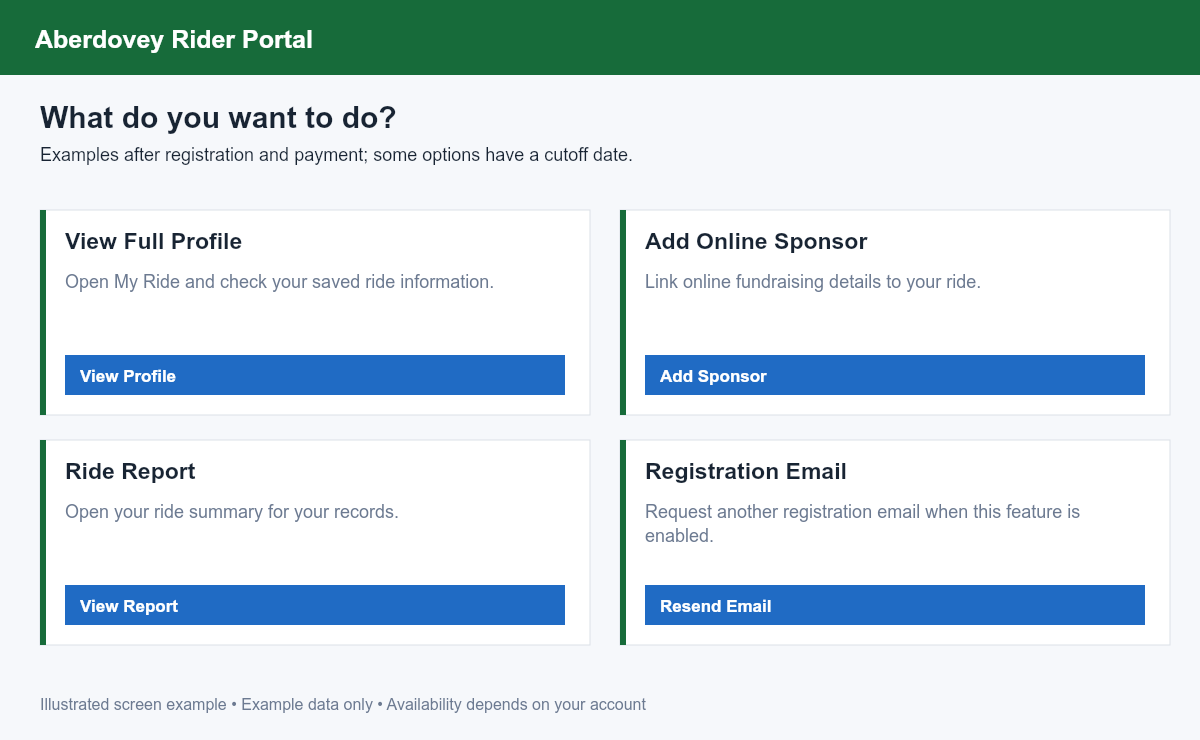
After registration and payment, the available cards can expand. Their visibility also depends on your ride, status, cutoff dates and enabled features.
| Card or information | What it is for |
|---|---|
| Your ride summary / rider number | Check your selected ride, options and number. A pending number or reserve status needs processing or organiser instructions. |
| View Full Profile | Open My Ride to review saved rider details, options, payments and sponsorship. |
| Manage Team | Shown to a team lead for managing their team. |
| Upgrade to 2 Day Ride | Offered for eligible Main Ride registrations while the upgrade is available. Check the current ride description and payment before agreeing. |
| Add Online Sponsor | Add/link your online fundraising page. |
| Add Offline Sponsor | Record offline sponsorship through the offered form. |
| Add / Cancel Yacht Club Meal | Change the currently offered free meal option. |
| Add / Cancel Bike Return | Change the currently offered free bike transport option. |
| Order / Cancel Coach Return | Review coach availability, payment and cancellation information. |
| Ride Report | View your ride summary for your records. |
| Registration Email | Resend the registration email if this feature is enabled and your rider status allows it. |
Use After Registering: Manage Your Ride for these tasks. If a card is absent, it may not apply to your registration, may need initial payment first, or may be closed for the ride date. Contact organisers if you need a change the portal does not offer.
4. Guides and other portal controls
Guides is the last homepage section. User Guides are available to signed-in users; Rider Guides appear for Rider role and above; Admin Guides are Superuser-only. The small role icons on guide cards indicate who can view them.
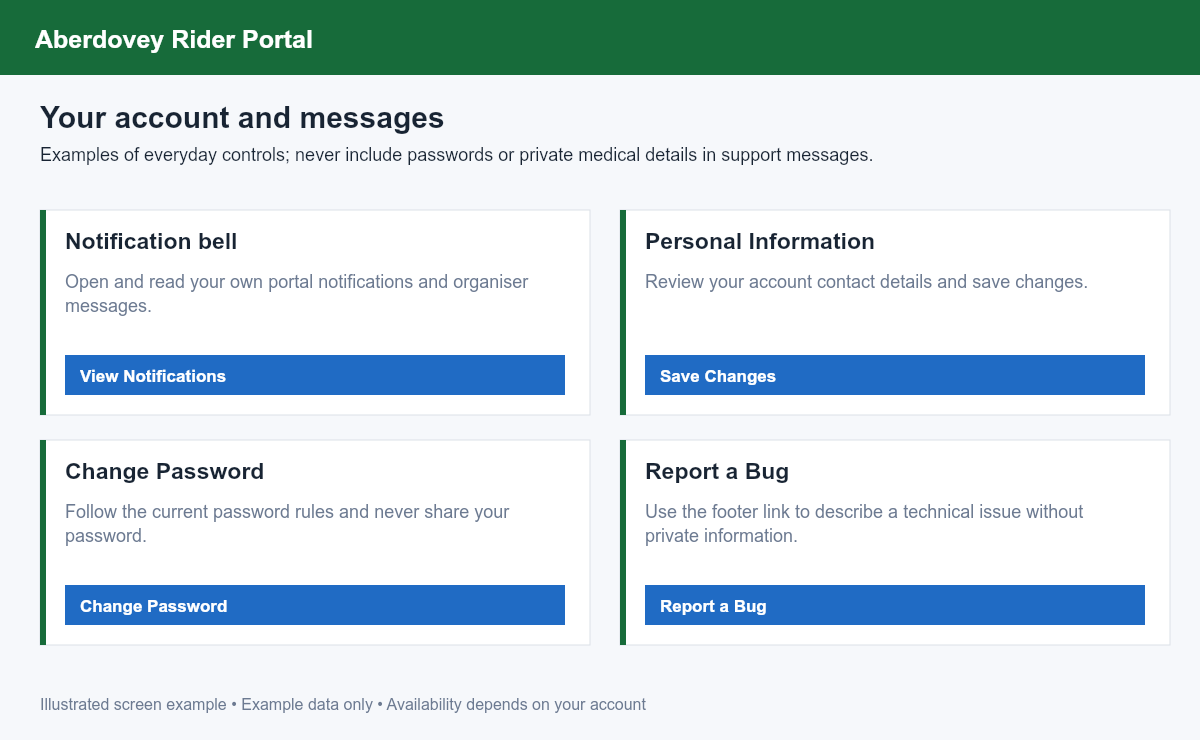
- Notification bell: open your notifications and read organiser messages. A badge can indicate unread items. View email content and use the offered reply/delete controls as appropriate; these controls can depend on the message and your permissions. Do not confuse the bell with the Superuser-only homepage card.
- My Details → Personal Information: review your account details. Change Password changes your password; follow the on-screen rules. Use the account's subscription controls or an email's unsubscribe link for optional communications, and check what the confirmation says.
- Report a Bug: use the footer link to report a technical problem. Include what you were doing, the page and the error; exclude passwords, payment credentials and private medical details.
- Sign out: use the account menu when finished, particularly on a shared computer.
For payment disputes, missing registrations, withdrawals, ride changes not offered on screen or consent questions, contact the event organisers. Keep your account email and ride year ready, and never send your password.